![logo_help.png]](https://knowledge.symbolsecurity.com/hs-fs/hubfs/logo_help.png?width=120&height=57&name=logo_help.png)
Threat Simulations serve as an alternative to traditional phishing simulation emails. It's available for all kind of organizations and consists of displaying simulated phishing emails directly into the Users Portal, rather than being sent through traditional email.
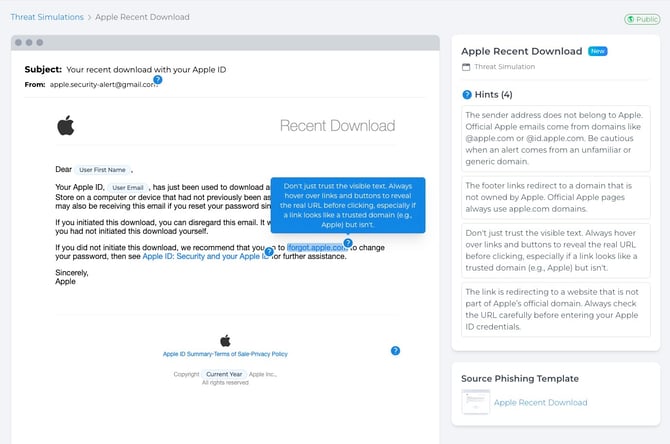
Administrators can easily preview the available threat simulation assets by navigating to: Library > Threat Simulations from both the Command Center (Previous MSP Portal) and Company Portal.
By hovering over the 🔵 Blue Dots in a Threat Simulation, administrators can see a short description about the unsafe parts of the email (listed in the right side of the screen too).
How to Assign Threat Simulations
At present, the only method for assigning threat simulations is to incorporate them into the Company Program Schedule or Corrective Workflows. However, our team is actively working on expanding this functionality to allow manual assignments from the Command Center, and Company Portal.
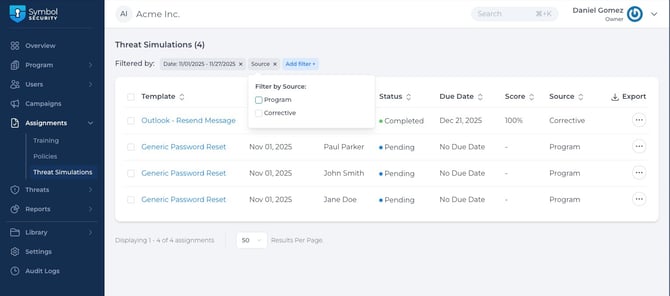
When users are assigned Threat Simulations, administrators can see the list of assignments by navigating to the Assignments > Threat Simulations from both the Command Center, and Company Portal. All threat simulations assigned through the different sources are listed here, with the ability for admins to:
- Filter: by Date, Source, Due Date, Status, User, Template, and others.
- Export (With or without applied filters.
- Unassign (Remove assignments for their users)
- Change Due Dates (Update the due date of one or multiple assignments)
Once a Threat Simulation is assigned, users receive an email notification, similar to how it works with training assignments, and they can see their assigned threat simulations by navigating to the User Portal and clicking on My Assignments > Simulations. Also, from the User Portal Dashboard, they can identify pending threat simulation assignments with the yellow "Threat Simulation" badge displayed beneath the assignment title.
To complete a Threat Simulation, users must first assess whether the email template is safe or not. If they label it as "unsafe," the application will prompt them to pinpoint the specific elements of the email that are concerning. Conversely, if they classify the email as "Safe," the system will record their completion and highlight any unsafe characteristics present.
Note: Users can hover the Threat Simulation links/buttons to reveal if the routes where they are redirecting to are safe or not.
Threat Simulation Score & Gamification
The score for Threat Simulations is determined by user interactions and the number of unsafe indicators recognized. For instance:
- A user marking a threat simulation as "Safe" when it is actually safe will receive a score of 100%.
- A user marking a threat simulation as "Safe" when it is unsafe will receive a score of 0%.
- A user marking a threat simulation as "Unsafe" will initially receive 50%, with the remaining score based on their identification of unsafe elements. For example:
- If there are 5 total hints and the user successfully identifies 4 out of 5 hints, they would earn 80% of the remaining 50%, which is 40%.
- Combined with the initial 50%, the total score becomes 90%.
If you have any questions about how to integrate this new feature into your company program, please contact our support team for assistance.