![logo_help.png]](https://knowledge.symbolsecurity.com/hs-fs/hubfs/logo_help.png?width=120&height=57&name=logo_help.png)
You can add new users or update existing users in Symbol Security by uploading a CSV file. If your user list is stored in a spreadsheet, save the file as a CSV using an application such as Microsoft Excel or Google Sheets. Most database systems also allow you to export user lists as CSV files.
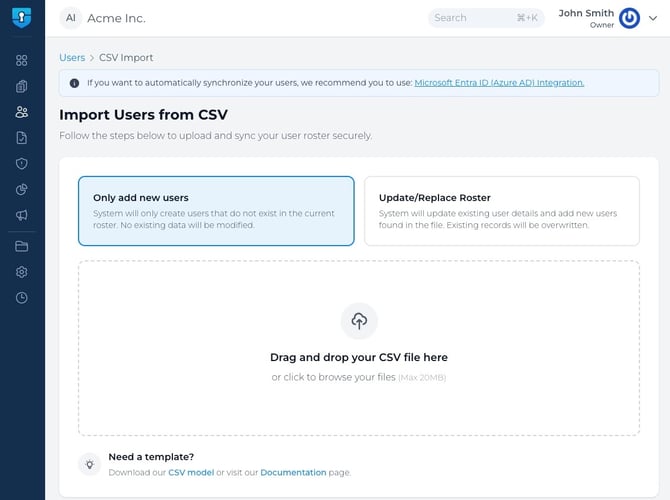
Step 1: Upload Your File
By navigating to Users > Roster, click Import CSV. If you already have users in your account, you can also click the three-dot menu in the top-right corner and select the Import CSV option.
You will be taken to a new screen where you can either:
- Drag and drop your CSV file
- Click the upload box to browse for your file
Note: If User Synchronization with Microsoft or Google is active, the CSV import option will be disabled.
On this screen, you can choose one of the following options:
-
Add New Users Only: Imports only users who do not already exist in your list.
-
Update/Replace Roster: Updates existing user details and adds any new users found in the file. If existing users are not included in the CSV, the app will display a checkbox asking whether you want to remove them. This option is disabled by default.
After the file is uploaded, Symbol will automatically validate and begin processing it.
Step 2: Map CSV Headers
After your CSV file is uploaded successfully, you will need to review how your CSV headers match Symbol headers. Symbol attempts to map the headers automatically, but you should confirm that each one is matched correctly.
Your CSV file can contain as many columns as needed, but Symbol only imports the following fields:
-
First Name
-
Last Name
-
Email Address
-
Title (for example: Accountant, Seller, Developer)
-
Categories (for example: department or employee group such as Design Team, Development, or Finance)
Notes: If a column in your CSV does not match a Symbol header, you can set it to Unmapped. Symbol will treat that column as empty.
Once you confirm the header mappings, click Continue. Symbol will begin processing your file. Processing time may vary depending on the number of users being imported.
Step 3: Validate Your List
After processing is complete, Symbol displays the first 10 users found in the CSV so you can confirm that the data was matched correctly.
This screen also shows the total number of users being added, and ny errors found in the file.
Click Edit CSV to correct or remove invalid fields if needed.
Step 4: Edit CSV (Optional)
From this screen, you can update your user list and fix any errors directly in the app.
When you are finished making changes, click Finish Import to begin uploading your users.
Important: If you are uploading a large number of users, you may experience slower performance while editing.
Step 5: Finish Import
Once you finish reviewing and editing your file, click Finish Import. Symbol will then begin adding new users or updating existing users based on the import option you selected.
Note: Make sure your plan has enough available seats before adding new users. If there are not enough seats available, the app will display an error.